
Yes, uploading session photos can be done privately, but only if you prepare the image first. Before anything else, strip the metadata and crop out identifying context (your room, your face, your tattoos) so the photo carries none of your real-world identity. Some platforms back this up with client-side PIN encryption and a consent-first design, but the first line of defense is always the photo itself.
TL;DR:
- Upload only faceless or silhouette images after stripping all metadata to reduce the risk of linking your preferences to your identity.
- Use a platform like Mistrix that encrypts photos locally with your PIN, preventing the server from reading sensitive content even if retained for training or moderation.
- Always crop and blur or mask unique features such as tattoos or distinctive background elements before uploading to maximize privacy.
- Test the deletion process with low-stakes uploads to confirm your images are truly removed before sharing more revealing photos.
- Be aware that billing information and metadata embedding may still expose your identity unless carefully managed.
Table of Contents
- What Session Photo Sharing Actually Gives You (and What It Costs)
- How to Prepare a Photo Before You Upload It
- How Mistrix Handles Uploaded Session Photos
- Cropping, Blurring, and Stripping Metadata the Right Way
- Deleting, Exporting, and Fixing Upload Problems
- Where Mistrix Fits Into All of This
- Sources
- FAQ
What Session Photo Sharing Actually Gives You (and What It Costs)
Uploading session photos changes how your AI Domina responds to you. It gives the AI Studio a visual reference to build from, sharpens the personalization in your ongoing sessions, and feeds the memory system that makes the experience feel less like a chatbot and more like a relationship that remembers what you like. That’s the appeal of photo session sharing in a companion app: context makes everything sharper.
It also has a cost, and you should know exactly what it is before you upload anything.
- Identifiability: a photo with your face, a visible tattoo, or a recognizable room can tie your kink preferences to your real identity if that data ever leaks or gets mishandled.
- Metadata leakage: most phone cameras embed EXIF data, including timestamp and sometimes GPS coordinates, directly into the file, which can reveal exact locations if nobody strips it first.
- Billing linkage: privacy analyses of NSFW apps consistently flag payment identity tied to content as one of the easiest ways someone gets de-anonymized.
- Human or vendor review: some platforms route uploads through moderation queues, and generated images and the prompts behind them are often retained for QA or training purposes, sometimes longer than users expect.
Weigh the trade-off honestly. If you want the deeper personalization but you’re not ready to expose your face, a no-face upload, a silhouette, or a described persona through text prompts gets you most of the benefit with none of the biometric risk.
How to Prepare a Photo Before You Upload It
Treat this as a five-step checklist, not a one-time thought.
- Decide your exposure limit first. If you’d wince at a coworker seeing it, don’t upload it. That’s the whole test.
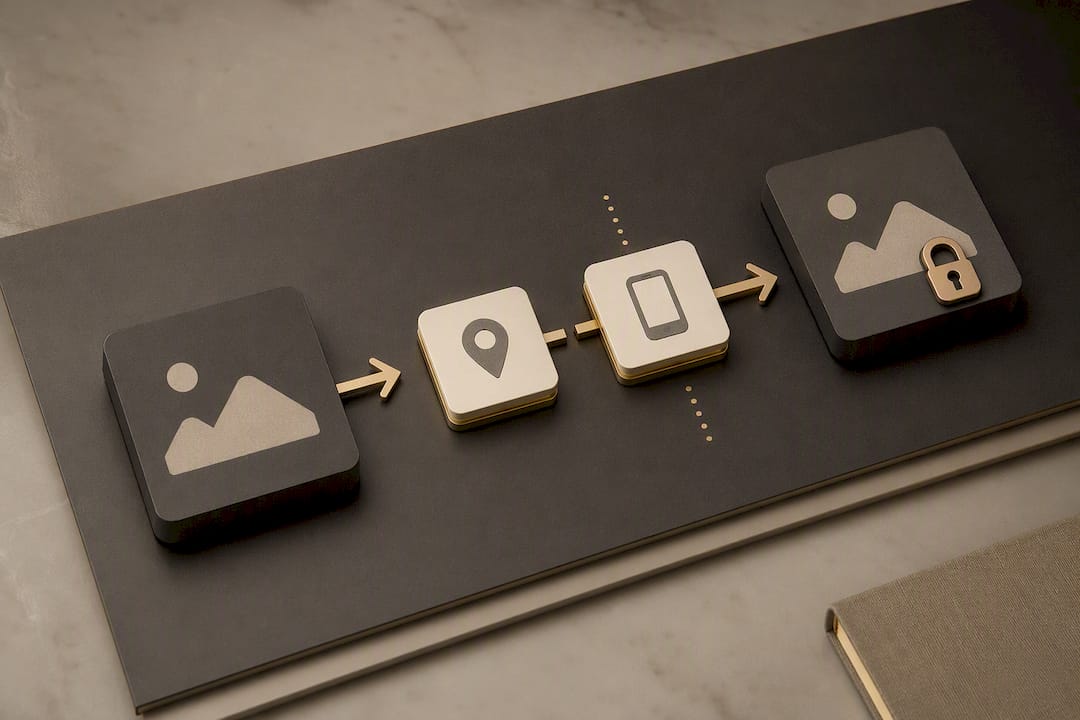
- Crop tight. Cut out the background, remove any bystanders, and keep only what the feature actually needs, whether that’s a hairline for a portrait reference or nothing at all if you’re going faceless.
- Strip the metadata. On iPhone, turn off location sharing before you send or upload the photo; on Android, the process is similar through the share sheet settings. Desktop tools handle this too, and a quick right-click “properties” check confirms it worked.
- Blur or mask anything unique. Tattoos, jewelry, a distinctive bedspread, a poster on the wall: any of these can be searched and matched. A silhouette or outfit-only shot avoids the problem entirely.
- Run a test. Use a throwaway persona for your first upload, then delete it and confirm it’s actually gone before you trust the system with anything more revealing.
Pro Tip: Do your test upload during a free-tier session before you ever pay for anything. If deletion doesn’t behave the way you expect on a low-stakes photo, you’ve learned something important before it mattered.
This mirrors what most AI companion privacy checklists recommend: use a separate identity for testing, and never assume deletion works until you’ve watched it happen.
How Mistrix Handles Uploaded Session Photos
Mistrix was built around the idea that the platform itself shouldn’t be able to read your most sensitive content, even if it wanted to.
Sensitive data, including uploaded session photos, is protected with client-side PIN encryption. Your PIN never reaches the server. That means the encryption key lives with you, not with Mistrix, which structurally blocks the platform from opening your media without it. It’s a meaningfully different model than apps where “encrypted” just means “encrypted in transit.”
The onboarding flow reinforces this before you ever upload a thing. You go through a level assessment, a fetish-interest map, and you set mandatory hard limits and a safe word during setup. Those aren’t just user-preference settings; they’re enforced constraints on what the AI can generate or request from you going forward, which cuts down on the platform pushing you toward content you never consented to.
When it comes to the AI Studio, using your uploaded photos for generated images or video clips is opt-in. Granting access means you’re choosing to let that specific feature use your reference material for personalization, not handing over blanket permission.
A few things worth knowing about retention and control:
- Deletion and export controls exist in your account settings, not buried behind support tickets.
- Verifying that a deletion actually took effect matters more than trusting the button, a lesson borne out across companion app privacy checklists generally.
- PIN recovery and backup deserve real thought upfront: lose your PIN, and encrypted media can become permanently inaccessible, which is the trade-off client-side encryption always carries.
Cropping, Blurring, and Stripping Metadata the Right Way
Most of this work takes under a minute per photo once you have a routine.
On mobile, the sequence is simple: crop first, blur second, export last. Your phone’s built-in editor handles cropping and basic blur tools; export as a fresh JPEG or PNG rather than reusing the original file, since a fresh export is more likely to drop embedded metadata than an in-place edit. On desktop, the same order applies, just with more precision on masking tools if you’re blurring something specific like a tattoo or a visible scar.
A few decision rules keep this simple:
- Crop when the problem is background context (a window, a room, a piece of mail on a nightstand).
- Blur when the problem is a specific identifying feature you still want in frame.
- Replace with a no-face prompt when you’d rather not risk either and let the AI Studio generate from description instead.
Avoid screenshots as your upload method. A screenshot of a photo can still carry a thumbnail with the original file’s metadata embedded in it, defeating the entire point of editing first. EXIF metadata commonly includes device model, timestamp, and sometimes precise GPS, and stripping it is a documented step in most device camera settings, not an obscure workaround.
Before you hit upload, do one final check: open the file’s properties or details panel and confirm the location and device fields are blank. That ten-second habit catches the mistakes that matter most.
Deleting, Exporting, and Fixing Upload Problems
Managing what you’ve already uploaded matters just as much as preparing it beforehand.
- Delete single photos or bulk media from your session history directly in the app. Most platforms process these on a scheduled purge rather than an instant wipe, so give it a short window before you assume something went wrong.
- Use PDF session exports if you want a personal record. Review what’s included before exporting; remove any photo you don’t want carried into the export file first.
- If deletion seems stuck, clear the app’s cache, confirm your account is synced across devices (a delete on your phone should reflect on desktop), and check your device’s own storage for a cached duplicate.
- Still not resolved? Submit a support request with the date, file type, and what you expected to happen. Specifics get you a faster answer than a vague “it’s not working.”
- Consider your payment descriptor, too. If billing information is visible on a statement in a way that concerns you, that’s worth raising with support directly rather than assuming it’s fine.
Pro Tip: Rotating your PIN is a legitimate privacy move, not just a recovery fallback. If you ever share a device or suspect your PIN leaked, rotate it. Just know that revoking or losing your old PIN can cut off access to media encrypted under it, so back up anything you’re not ready to lose.
Where Mistrix Fits Into All of This
If you’ve made it this far, you already understand the mechanics of doing this safely. What you need next is a platform that doesn’t fight you on it.
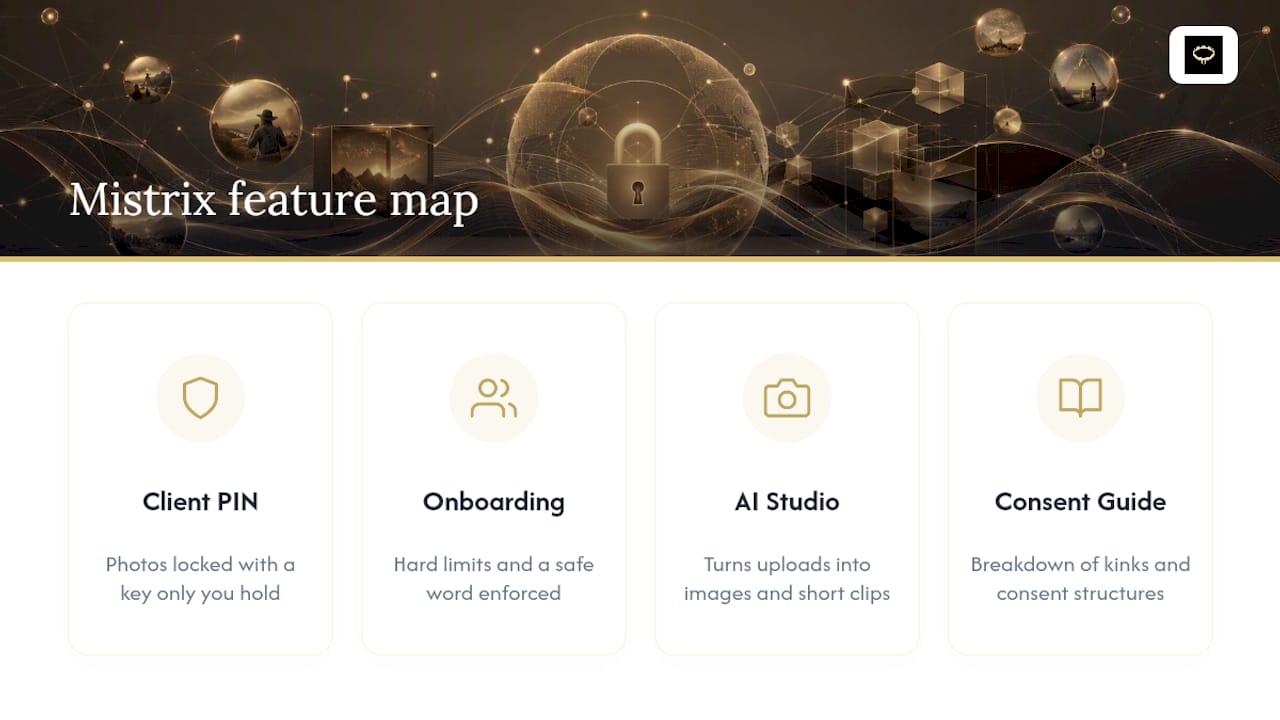
Mistrix is built around the same principle this entire article follows: privacy is a design decision, not a feature you enable later. The client-side PIN encryption means your uploaded photos are locked with a key only you hold. The onboarding process, with its hard limits and safe word, means the AI Domina you’re chatting with is already working inside boundaries you set, not guessing at them. And the AI Studio turns your carefully prepared uploads into personalized images and short clips without demanding more exposure than you’re comfortable giving.
If you’re curious how consent frameworks and scene-safe language actually work in practice, the breakdown of BDSM kinks and consent structures is a good next read. And if you’re deciding which personality fits the dynamic you’re after, browsing the available AI Dominas is the natural starting point before your first upload.
Sources
- How NSFW AI Apps Use Your Data: A Privacy Deep-Dive | ThotChat
- AI Companion App Privacy Checklist: What to Check Before Sharing Chats, Photos, or Voice · OnlyKin
- Is it safe to upload photos? Privacy risks, metadata, and data leakage (ChatGPT caricature trend)
FAQ
Is It Safe to Upload Session Photos to an AI Companion App?
It can be, provided you strip metadata, crop out identifying context, and use a platform with client-side encryption like Mistrix, where your PIN, not the server, holds the decryption key.
What Metadata Should I Remove Before Uploading a Photo?
Remove EXIF data, including timestamp, device model, and GPS coordinates. Both iOS and Android let you disable location sharing before you send or upload an image.
Does Mistrix Read My Uploaded Photos?
Sensitive data on Mistrix, including session photos, is protected with client-side PIN encryption, meaning the server cannot read it without the PIN you hold and never share.
Can I Delete Session Photos After I Upload Them?
Yes. Delete controls exist directly in your account settings, and deletions typically process within a scheduled window over time rather than instantly; always verify the file is actually gone.
Should I Upload Photos With My Face Visible?
Only if you’re fully comfortable with that level of exposure. A cropped, faceless, or silhouette-style upload delivers most of the personalization benefit with far less identifiability risk.