
A private chat PIN is a code you create and hold yourself, used to unlock encrypted backups, verify a session between two devices, or lock your app from casual snoopers. It is not the same as pinning a message to the top of a conversation. If an app suddenly asks you to set one, check whether it’s tied to back up recovery in your privacy or security settings before you type anything.
TL;DR:
- Private chat PINs are used for securing backups, device verification, or app locking, and are not visible to other chat participants.
- A PIN related to backups prevents data recovery if forgotten, while verification PINs confirm device identity through separate trusted channels.
- Creating, changing, or resetting a PIN requires accessing the app’s official security settings, storing recovery codes securely, and verifying the request’s legitimacy.
- PIN protection mainly safeguards against casual access and theft, but does not defend against malware, phishing, or server-side vulnerabilities.
- Reusing PINs or neglecting device management increases risk; regular review and offline storage of recovery keys are best practices for security.
Table of Contents
- Security Pin vs. Pinned Message: What’s the Difference?
- How Do Chat Apps Actually Use PINs and Verification Codes?
- How Do You Create, Change, or Reset a Private Chat Pin?
- What a Private Chat Pin Does Not Protect You From
- Best Practices for Managing Your Private Chat Pin
- A Real Example: Client-Side Pin Encryption in Practice
- Sources
- FAQ
Security Pin vs. Pinned Message: What’s the Difference?
Two completely different features share the word “pin,” and mixing them up is where most of the confusion starts.
A pinned message is a convenience feature. It puts a chosen message at the top of a conversation so everyone in the chat can find it fast. Microsoft Teams lets any participant pin, unpin, or replace a pinned message, and everyone in that chat sees it. Signal works the same way: you can pin something for a set period or indefinitely, but the pin stays visible to other members. As Signal’s own team puts it, this is a UX tool, not a lock. Their post explaining the feature, Put a Pin in It, draws a clean line between this kind of pin and anything cryptographic.
A security PIN, on the other hand, is access control. It gates something: a backup, a device pairing, an app lock screen. Nobody else in the conversation sees it, and in well-designed systems, the app provider does not see it either.
Not sure which one your app is asking about? Run through this quick check:
- If the setting mentions “top of chat,” “everyone can see,” or “unpin,” you’re dealing with the UI feature.
- If it mentions “backup,” “recovery key,” “encryption,” or “verify this device,” you’re dealing with a security PIN.
- If you’re prompted the first time you install the app on a new phone, it’s almost certainly a security or verification PIN.
How Do Chat Apps Actually Use PINs and Verification Codes?
A private chat PIN typically does one of three jobs, and knowing which one applies to your app changes how seriously you should treat it.
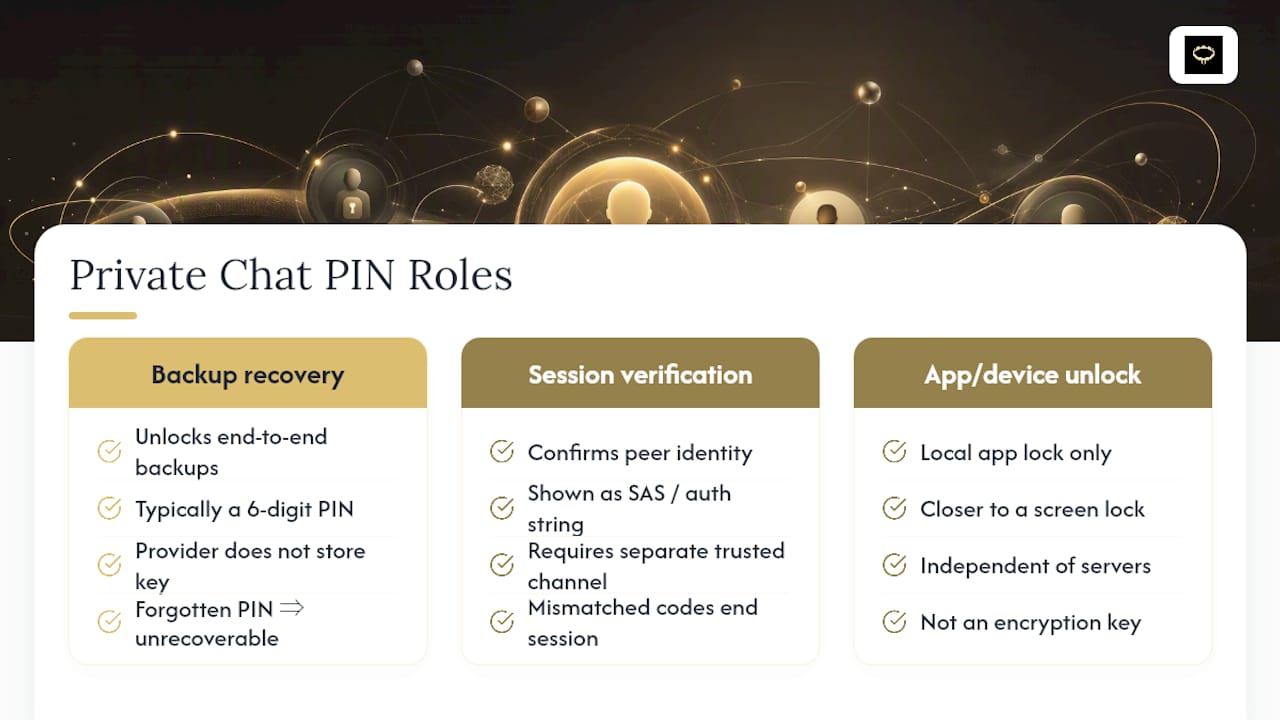
Backup recovery. Mainstream apps like Facebook Messenger use a 6-digit PIN to unlock end-to-end encrypted backups. Messenger doesn’t store your decryption key, so if you forget that PIN, your encrypted chat history can become unrecoverable. That’s not a threat. It’s the direct consequence of the app provider genuinely not being able to read your data.
Session verification. In peer-to-peer and privacy-focused messengers, a code (sometimes shown as a short authentication string, or SAS) confirms that the person on the other end of an encrypted session is really who they claim to be, not an attacker sitting in the middle. This out-of-band check has to happen through a separate trusted channel, like a phone call, rather than inside the chat itself.
Device and app unlock. Some apps use a local PIN purely to lock the app on your phone, independent of any server. This is closer to a screen lock than an encryption key.
Here’s the detail most people miss about session verification: it has a built-in failsafe. Documentation for the SecureBit.chat project notes that mismatched verification codes should end the session immediately, and many implementations cut the connection after several failed attempts. That’s a deliberate design choice. A system that lets you keep guessing indefinitely isn’t protecting anyone.
The deeper reason apps push this responsibility onto you at all comes down to architecture: in a zero-knowledge design, the server is just a relay. It never holds the key. That’s why you get asked to create the PIN in the first place.
How Do You Create, Change, or Reset a Private Chat Pin?
Before touching any PIN setting, do three things: update the app to its latest version, write down or securely store any recovery codes the app gives you, and confirm you’re actually inside the app’s official settings menu, not a phishing page mimicking it.
From there, the general path looks like this across most apps that offer encrypted backups or PIN locks:
- Open Settings, then look for Privacy or Security.
- Find the Backups or Encryption section.
- Select Set PIN or Create Recovery Key.
- Enter a PIN that isn’t your birthday, your address, or a repeat of another account’s code.
- Store the confirmation or recovery phrase somewhere offline, not just in a screenshot on the same phone.
If an app asks you for a PIN out of nowhere, in a context you didn’t expect (a text link, a pop-up during an unrelated task), stop and verify the request through the app itself rather than the prompt. Legitimate PIN requests come from inside settings menus, not surprise messages.
If you forget your PIN, check the app’s help center before panicking. Some apps offer a limited reset that wipes and rebuilds your encrypted backup from scratch. Others, particularly those built on zero-knowledge or PAKE-based designs, have no reset at all, because the server never had the material to rebuild your key in the first place.
Pro Tip: Test your recovery process once, right after setup, on a spare device if you have one. Finding out your recovery key works while you still remember creating it beats finding out it doesn’t three months later.
What a Private Chat Pin Does Not Protect You From
A PIN is a lock, not a bodyguard. It’s worth being clear-eyed about which threats it actually stops.
It mitigates:
- Someone picking up your unlocked phone and browsing your chats.
- A stolen backup file being opened by someone who doesn’t have your PIN.
- Casual, opportunistic access, not targeted attacks.
It does not mitigate:
- A compromised operating system or malware already running on your device.
- Phishing pages designed to trick you into typing your PIN somewhere fake.
- Social engineering that convinces you (or a support rep) to hand over access.
- Server-side vulnerabilities in systems where the provider, not just you, holds a copy of the key.
This last point connects directly to why out-of-band verification matters so much in peer-to-peer chat. A man-in-the-middle attack works by inserting someone between two devices during setup, before trust is established. Verifying a code through a second channel, a voice call, an in-person check, closes that gap. No amount of PIN complexity fixes a session that was never verified.
Layer your defenses instead of relying on one: full-disk encryption, current OS updates, current app updates, and a pruned list of devices with access to your account all matter more together than any single PIN does alone.
Best Practices for Managing Your Private Chat Pin
Treat your PIN like a house key you can’t get duplicated at the hardware store. Losing it isn’t a minor inconvenience in a well-built system, it’s often permanent.
- Pick a PIN you haven’t reused anywhere else, and store the recovery version in a password manager or an offline safe, not a notes app synced to the cloud.
- Verify new devices or sessions through a channel outside the chat itself, a phone call or an in-person glance at the code, before trusting them.
- Turn on your phone’s screen lock and full-disk encryption; a PIN on the app means little if the phone underneath it is wide open.
- Review and remove old or unused devices from your account’s trusted-device list every few months.
- If you suspect your PIN or device has been compromised, rotate it and revoke active sessions through the app’s official settings right away.
None of this requires technical expertise, just the habit of checking rather than assuming. Security researchers who work on peer-to-peer verification systems put it plainly: always confirm codes through a secondary, trusted channel, and keep in mind that no system reaches 100% security. Pairing a strong PIN with basic device hygiene, like the phone-level protections covered in locking down adult app privacy, closes most of the gap between “locked” and “actually protected.”
Pro Tip: Set a recurring reminder every few months to check your device list and rotate any PIN you’ve used for over a year. Five minutes now saves a much worse conversation with yourself later.
A Real Example: Client-Side Pin Encryption in Practice
Mistrix builds its privacy model around a version of this exact pattern. Sensitive account data gets encrypted client-side, meaning the encryption happens on your device using a PIN only you hold, before anything reaches Mistrix’s servers. The server never sees the raw PIN and never holds the key needed to decrypt your content.

That structure has a real upside: even in the event of a server breach, there’s nothing readable to steal, because Mistrix itself is structurally unable to read it. It’s the same zero-knowledge logic behind PAKE-based systems, applied to a companion app instead of a messenger.
It also comes with the same trade-off every zero-knowledge system carries. If you lose your PIN, that encrypted content can become permanently inaccessible, since there’s no server-side backup key waiting to bail you out. That’s exactly why offline recovery storage matters so much, a point covered in more detail in how end-to-end encrypted chat works for AI companions, and in how the same PIN encryption protects session photo uploads specifically.
If you want a private, judgment-free space to explore custom scenes with an AI Domina, and you want your PIN, not a server, holding the key, Mistrix’s pricing page lays out the Free, Premium (15 EUR per month), and Premium Plus (25 EUR per month) tiers, each built on that same client-side encryption from day one.
Sources
FAQ
What Is a Chat Pin?
A chat PIN is a code you create yourself to unlock encrypted backups, verify a new device or session, or lock the app locally. It’s different from a pinned message, which just keeps a note visible at the top of a conversation for everyone in that chat.
What Is the 6-Digit Pin for Messenger?
It’s the code Messenger asks you to set for encrypted chat backup recovery. Messenger doesn’t store the key that unlocks that backup, so losing the PIN can mean the encrypted history is gone for good.
Can People See When You Pin a Chat?
Yes. Pinning a message is a shared UI feature, and other participants in that chat can usually see the pin, and in apps like Microsoft Teams, anyone in the chat can even unpin or replace it. This is different from a private security PIN, which stays known only to you.
Why Is Messenger Asking Me for a Pin?
Messenger is asking you to set up encryption for your end-to-end encrypted chats, typically for backup recovery on a new device. It’s a one-time setup step, not a sign that anything is wrong with your account.
What Happens if I Forget My Private Chat Pin?
It depends on the app’s design. Some offer a limited reset that clears your encrypted backup and starts fresh, while zero-knowledge or PAKE-based systems often have no recovery path at all, since the server never held your key to begin with.